I had to put a Flutter app on the App Store in three languages, with screenshots showing real content — a walk recorded through a city, a running clock, a list of past walks — not empty states. Design kept changing, so I wanted the whole set re-shootable by one command.
The approach: no separate screenshot app. Same main.dart, same router, same state stores — three compile-time flags decide what the app does at launch. One seeds believable records into the very service the screens read from, one fabricates a walk in progress with a ticking clock so no GPS is needed in the simulator, and one is handed to the router as its initial location, so any screen can be opened directly. const bool.fromEnvironment is a compile-time constant, so none of it exists in a normal release build. Then xcrun simctl installs, launches, screenshots, and switches the simulator's language between passes.
Two things cost me a rebuild. I shot on the newest simulator I had, iPhone 17 Pro Max — 6.9", 1320×2868 — and App Store Connect refused the whole set: it wants 1242×2688, 2688×1242, 1284×2778 or 2778×1284. An iPhone 13 Pro Max simulator gives exactly 1284×2778. Then it demanded 13-inch iPad screenshots; the app records a walk held in the hand, so instead of faking iPad art I set TARGETED_DEVICE_FAMILY = "1" and the requirement vanished with the next build.
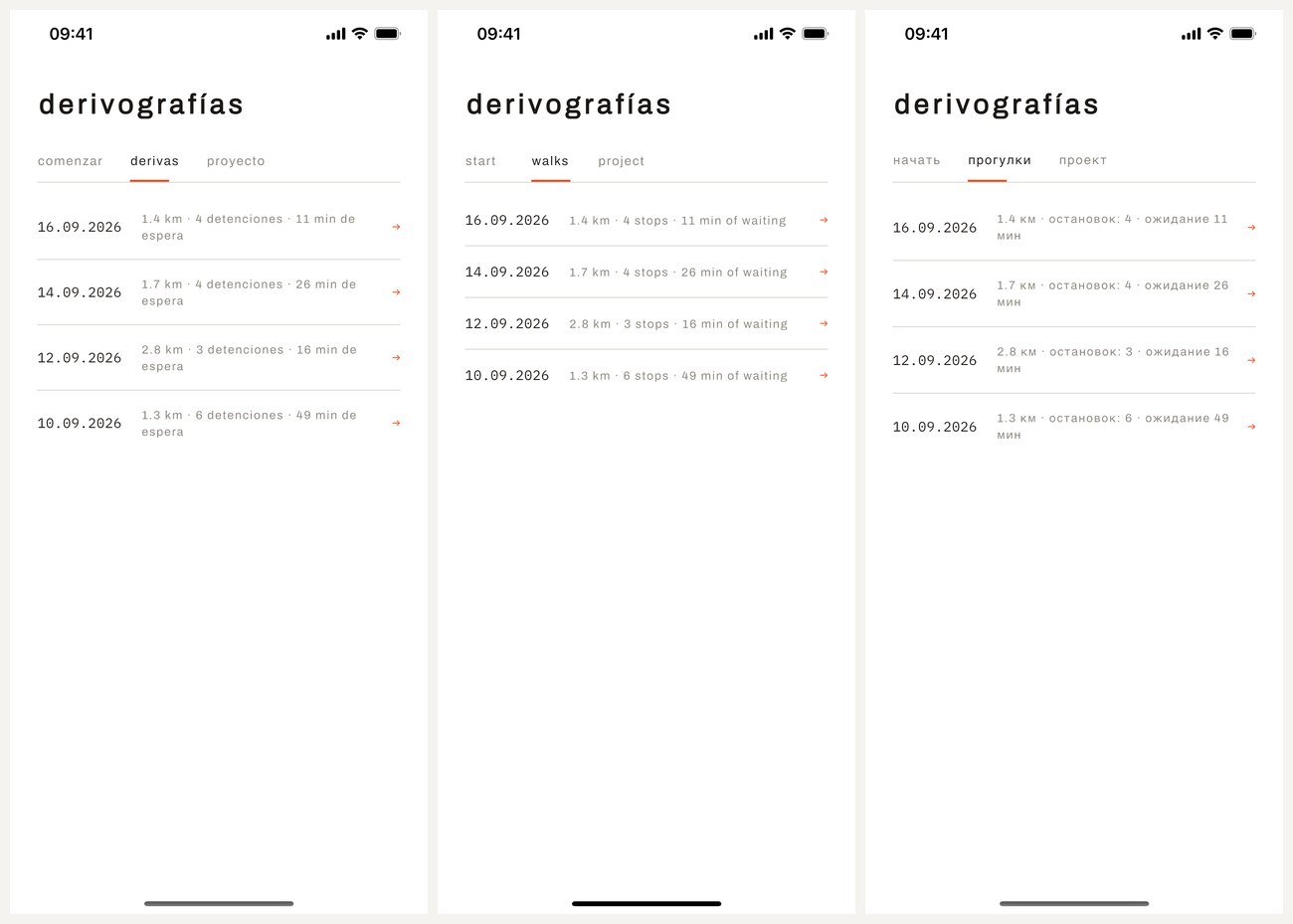
Smaller traps: shots taken under ~12 seconds after launch came out blank, and a stale simulator put a permission dialog over every frame until xcrun simctl erase. I proved that one wasn't my code by building the already-shipped commit and watching it do the same thing.
Reproduce this
Prerequisites: macOS with Xcode command line tools, a Flutter app that builds for the simulator, its localizations already in place (ARB + flutter gen-l10n, or equivalent).
Your agent will need from you: the bundle id, which screens to capture, which locales to ship, and what "believable data" means for this app.
Steps:
- Keep one entrypoint. Do not fork
main_screenshots.dart— a second entrypoint drifts from the real app and your screenshots slowly start lying. Add compile-time switches to the existingmain()instead:
   await setupDependencies();               // the app's normal wiring
   if (const bool.fromEnvironment('DEMO_DATA')) {
     await loadDemoRecords();               // fills the SAME service the UI reads
   }
   if (const bool.fromEnvironment('DEMO_LIVE')) {
     startDemoSession();                    // fabricates in-progress state
   }
runApp(const MyApp());- Let the router accept a target screen, so no tapping is needed:
   final router = GoRouter(
     initialLocation:
         const String.fromEnvironment('DEMO_SCREEN', defaultValue: '/'),
     routes: [...],                          // unchanged
);- Make the demo data believable and bundled. Put realistic records in a JSON asset and deserialise them with the app's own model, so every screen renders exactly as in production. For live state, set the same observable fields a real session would set and drive the clock yourself:
   final start = DateTime.now().subtract(const Duration(minutes: 23, seconds: 47));
   store.status = SessionStatus.active;
   store.startedAt = start;
   Timer.periodic(const Duration(seconds: 1),
() => store.elapsed = DateTime.now().difference(start));- Create a simulator whose native resolution is a size App Store Connect accepts — the newest device is usually the wrong one. For the 6.5" set:
xcrun simctl create shots com.apple.CoreSimulator.SimDeviceType.iPhone-13-Pro-Max <runtime>with a runtime id fromxcrun simctl list runtimes. Confirm with a throwaway screenshot andsips -g pixelWidth -g pixelHeight.
- Boot it and freeze the status bar:
xcrun simctl boot <id>thenxcrun simctl status_bar <id> override --time 9:41 --batteryLevel 100 --cellularBars 4 --wifiBars 3.
- Loop: one build per screen, one launch per locale. Build once with the flags for that screen, install, then for each locale rewrite the simulator's language, relaunch, wait, capture:
   flutter build ios --simulator --debug \
     --dart-define=DEMO_DATA=true \
     "--dart-define=DEMO_SCREEN=/summary?i=0"     # quote values containing ? or &
   xcrun simctl install "$SIM" build/ios/iphonesimulator/Runner.app
   for loc in es en ru; do
     xcrun simctl spawn "$SIM" defaults write "Apple Global Domain" AppleLanguages -array "$loc"
     xcrun simctl spawn "$SIM" defaults write "Apple Global Domain" AppleLocale -string "$loc"
     xcrun simctl terminate "$SIM" "$BUNDLE_ID" 2>/dev/null || true
     xcrun simctl launch "$SIM" "$BUNDLE_ID"
     sleep 13                                     # under ~12s the frame is blank
     xcrun simctl io "$SIM" screenshot "out/$loc/summary.png"
done- If the listing demands iPad screenshots for an app that has no business on an iPad, set
TARGETED_DEVICE_FAMILY = "1"in every configuration ofios/Runner.xcodeproj/project.pbxprojand upload a new build instead.
- If a permission dialog covers every shot,
xcrun simctl erase <id>and reinstall — uninstalling the app alone does not clear a pending prompt.
Verify: sips -g pixelWidth -g pixelHeight out/*/*.png reports an accepted size for every file; each locale folder shows the interface in that language, including units and number formats; App Store Connect accepts the upload with no size error.